Created by: Anne Navera
Applicable for the following units with 8-inch Screen OEM:
- Chevrolet Colorado GMC Canyon 2015 – 2018
- Chevy Silverado GMC SIERRA 2014 – 2019
For this unit, the OEM or Factory Radio requires to be 100% Functional as the CD player will be retained to have the sound. NOTE: If no sound from OEM, it will not have any sound also when you use our unit.
- Make sure that the CD player is connected to its original plugs.
- Connect our harness as shown below:
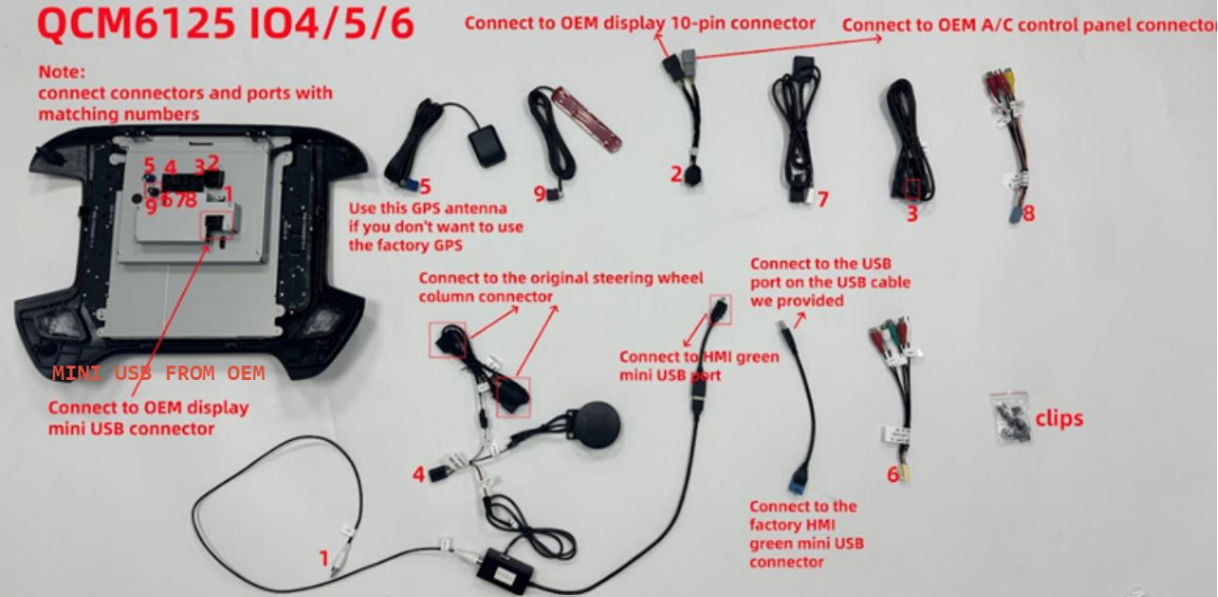
- MINI USB CONNECTOR FROM OEM is from the back of your original screen or OEM display.
- Number 1 is for the RCA need to connect at the back of our radio.
- Number 2 harness we provided for ac adaptor and power connector. Make sure not loose for the connection or no bent pins. Other end connects to the back or the radio.
- Number 3 is for USB function connect it to the back of the radio. This is for using a flash drive or for charging the phone
- Number 4 is the multi-function cable. It consists of 2 pin connections for the Steering Wheel control, Speaker, and for USB audio box.
- Steering Wheel control- Before connecting this plug try if it will work without this first.
- Speaker is for turning signals/ Chimes
- USB audio box - this is for the 3rd party Apps sound to work. The 2 pin connects to USB audio box cable which connects to the side of the USB audio box. Then connect the White RCA SPDIF to the USB box and to the back of our unit. The other end of the USB Audio box connects to an adaptor like below:
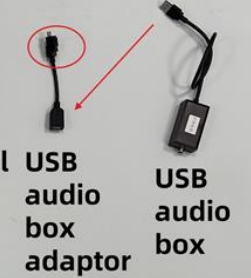
The red circled part on the image at the above needs to connect to the HMI USB Box color green. It is usually located around the Glove box or just around the dash part back of the radio. Please check this video to see the location of the HMI in some instances, its at the back of radio only and not on the glove box.
If on the Glovebox for HMI -
- MINI USB CONNECTOR FROM OEM is from the back of your original screen or OEM display.
If on the back of Radio -
The HMI will look like this and the Green encircled needs to be unplugged and need to connect our USB Audio box adaptor on the encircled one. The one that you removed from the green, needs to connect to the Factory USB adaptor (blue part). Then the USB side connects to USB 1 or 2 from us. 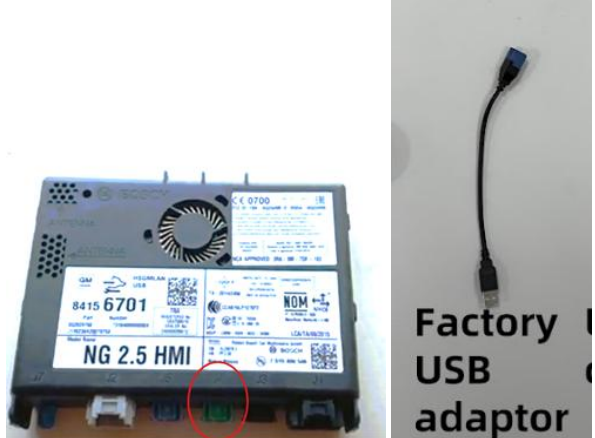
Was this article helpful?
That’s Great!
Thank you for your feedback
Sorry! We couldn't be helpful
Thank you for your feedback
Feedback sent
We appreciate your effort and will try to fix the article